IPTV on Firestick: Complete Setup Guide, Best Apps & 4K Streaming (2026)
Master IPTV on Firestick in 2026. Discover how to install top IPTV players, configure Xtream Codes playlists, optimize settings for zero buffering, and stream 50,000+ live HD/4K channels effortlessly.
Fire TV Streaming Specialist
Verified Technical Guide
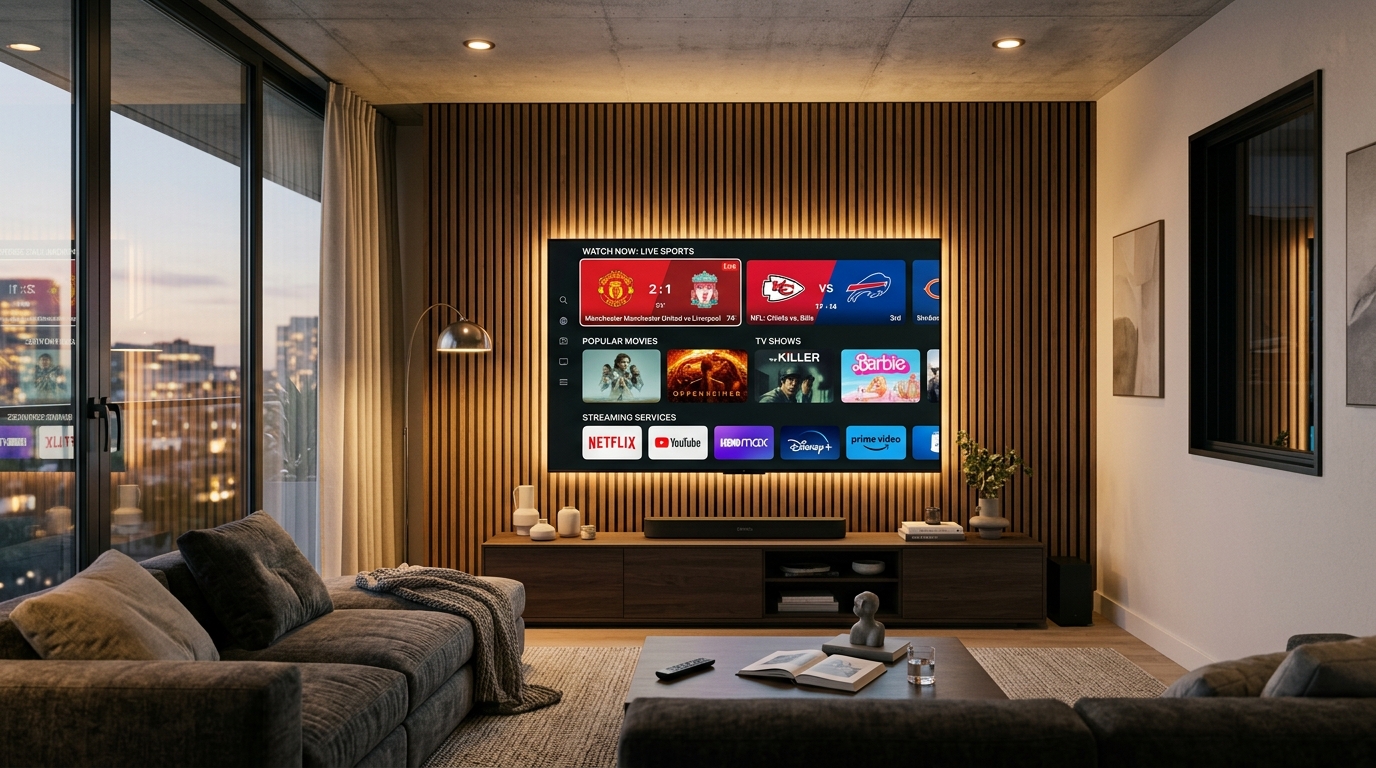
Key Takeaways & Quick Summary
- 1The Amazon Firestick (Fire TV Stick 4K, 4K Max, and Fire TV Cube) is the most versatile, high-performance streaming hardware for IPTV thanks to hardware HEVC decoding and responsive remote navigation.
- 2Setting up IPTV on Firestick takes under 5 minutes using the free Downloader utility to install verified media players like TiviMate, IPTV Smarters Pro, or IBO Player.
- 3With a IPTVBoz IPTV subscription, you unlock over 50,000 live international channels, premier 4K live sports, full EPG guides, and vast VOD libraries with plans starting at just $14.99/month or $59.99/year.
- 4Buffer-free 4K streaming is easily achieved by connecting your Firestick to the 5GHz Wi-Fi band, selecting hardware video acceleration (ExoPlayer), and clearing cached application data monthly.
- 5Instant activation credentials and 1-on-1 Firestick setup support are available around the clock via WhatsApp (+44 7934 683184) and email.
The Amazon Firestick has fundamentally transformed the home entertainment landscape. Measuring just a few inches and plugging directly into any television HDMI port, this pocket-sized powerhouse turns any standard TV into a modern digital streaming hub. When paired with iptv on firestick, the hardware unlocks unparalleled freedom—giving you access to tens of thousands of live broadcast networks, premium sports packages, and on-demand cinemas from across the globe.
However, because the official Amazon Appstore only features a limited selection of media players, many newcomers wonder how to properly configure their Firestick for IPTV streaming. Questions regarding developer settings, sideloading tools, Xtream Codes credentials, and buffering prevention often leave cord-cutters searching for a clear, authoritative walkthrough.
In this exhaustive 2026 guide, we break down everything you need to know about running IPTV on Firestick. You will learn how to prepare your device in minutes, install the top-rated IPTV player applications, synchronize your playlist credentials, and fine-tune your playback settings for flawless, buffer-free 4K sports and live television.
Why Amazon Firestick is the #1 Streaming Device for IPTV in 2026
While you can run IPTV applications on Smart TVs, Android boxes, tablets, and computers, the Amazon Firestick family remains the overwhelming favorite among serious streaming enthusiasts. There are several clear technical reasons why the Firestick dominates the market.
First and foremost is dedicated hardware acceleration. Modern Firesticks—especially the Fire TV Stick 4K and Fire TV Stick 4K Max—contain high-performance multi-core processors with native silicon support for HEVC/H.265, VP9, and AV1 video codecs. This ensures that demanding 4K Ultra HD broadcasts at 60 frames per second render smoothly without overheating the device or causing frame drops.
Cost-Effective Hardware with Zero Cable Rental Fees
Unlike traditional cable and satellite providers that force you to lease clunky proprietary converter boxes for $15 to $25 per month for every room in your home, an Amazon Firestick is a one-time purchase typically costing between $29.99 and $59.99.
Once purchased, you own the hardware outright. When combined with a IPTVBoz IPTV subscription starting at $14.99/month or $59.99/year on our pricing directory, the average household cuts their annual entertainment bill by more than $1,200 while gaining ten times more content.
Portability and Travel Convenience
Because your IPTV subscription is configured directly on your Firestick, your entire television ecosystem becomes completely portable. Whether traveling for business, vacationing at an Airbnb, or visiting family, simply unplug your Firestick and insert it into any HDMI TV with Wi-Fi access.
Your custom channel lists, favorite sports packages, and electronic program guides load instantly without requiring you to re-enter account passwords or reconfigure settings.
Phase 1: Preparing Your Firestick for App Installation
To install third-party IPTV media players like TiviMate, IPTV Smarters Pro, or IBO Player on your Firestick, you first need to allow the installation of applications from verified developers using the official Downloader utility.
Follow these straightforward steps to enable developer settings on Fire OS 7 and Fire OS 8:
Step 1: Install the Free Downloader App
1. From your Firestick Home Screen, navigate to the Find icon and click Search.
2. Type Downloader using the on-screen keyboard or use the Alexa voice button on your remote.
3. Select the orange Downloader app tile by AFTVnews and click Download or Get.
4. Once installed, do not launch it just yet—you must first grant installation permissions in your Firestick settings.
Step 2: Enable Developer Options & Install Unknown Apps
1. Go to Settings (the gear icon on the far right of your Firestick home screen menu).
2. Scroll down and click My Fire TV (or Device & Software on some versions).
3. Look for Developer Options:
• *Note for newer Fire OS versions:* If Developer Options is hidden, click About, highlight your Fire TV model name, and press the Select button on your remote 7 times rapidly until you see the message: *"No need, you are already a developer."*
4. Press the back button on your remote to re-enter My Fire TV, and you will now see Developer Options visible.
5. Open Developer Options, select Install Unknown Apps (or Apps from Unknown Sources), find Downloader, and toggle it to ON.
Top 4 IPTV Apps for Amazon Firestick (Ranked & Compared)
An IPTV service delivers raw broadcast streams and electronic program guides, but you need a dedicated media player application to decode those streams into an intuitive, polished TV viewing experience.
Here are the top four IPTV player applications ranked by performance, user interface, and reliability on Firestick hardware:
1. TiviMate IPTV Player (The Undisputed #1 for Firestick)
TiviMate is widely acclaimed as the single best IPTV player developed for Android TV and Firestick devices. Designed specifically for TV screens and remote controls, TiviMate delivers an interface that rivals or surpasses high-end cable decoders like Sky Q and Comcast Xfinity.
• Key Highlights: Seamless electronic program guide (EPG) navigation, multi-screen viewing (watch up to 4 live sports matches simultaneously), catch-up television support, scheduled local recording, and lightning-fast channel zapping under 0.5 seconds.
• Best For: Viewers who want the most authentic, professional living-room television experience on Firestick.
2. IPTV Smarters Pro (Best All-in-One for Families)
IPTV Smarters Pro is the world’s most recognized multi-platform IPTV application. It separates live television, on-demand movies, and episodic series into three dedicated hubs with rich movie posters, cast information, and trailer previews.
• Key Highlights: Native Xtream Codes API integration, built-in media players (ExoPlayer & VLC), robust parental controls, master search across all categories, and automated subtitle downloading.
• Best For: Households that frequently switch between live international broadcast channels and on-demand movies or TV series.
3. IBO Player (Lightweight, Blazing Fast & Easy Activation)
If you prioritize instant load times and minimal storage footprint, IBO Player is a premier choice for older Firesticks and budget dongles. It connects via MAC address and Device Key directly through a browser-based management portal.
• Key Highlights: Ultra-clean interface, rapid channel buffering, automatic playlist refresh, and flawless handling of high-bitrate 4K 60fps streams without taxing Firestick CPU memory.
• Best For: Users seeking a plug-and-play setup without navigating complex in-app preference menus.
4. XCIPTV Player (Modern Dashboard with Dual Internal Players)
XCIPTV offers a sleek, modern dashboard inspired by modern smart TV operating systems. It incorporates dual built-in media players with support for adaptive HLS streaming, tokenized stream security, and integrated EPG timeline views.
• Key Highlights: Full remote control hotkey customization, backup and restore options, and intuitive VOD episode tracking.
• Best For: Streamers who enjoy a customizable dashboard layout with quick-access favorite bars.
Step-by-Step Tutorial: How to Install and Activate IPTV on Firestick
Once Downloader is configured and you have chosen your preferred media player, connecting your IPTVBoz IPTV subscription takes less than 3 minutes. Here is the universal step-by-step activation procedure:
Step 1: Download Your Chosen Player via Downloader
1. Open the Downloader app from your Firestick Apps menu.
2. In the URL address box, enter the verified Downloader numeric quick-code or direct APK link provided in your activation welcome message.
3. Click Go. Downloader will connect to the secure repository and download the installation file automatically.
4. When the download completes, a prompt will appear on your TV screen. Click Install, and once finished, click Done.
5. When prompted by Downloader to keep or delete the installation APK file, select Delete to free up internal storage memory on your Firestick.
Step 2: Launch the App and Select Xtream Codes Login
1. Open your newly installed player (e.g., TiviMate or IPTV Smarters Pro).
2. When prompted to select your playlist type, choose Login with Xtream Codes API (recommended over M3U URL for faster loading, automatic EPG matching, and organized VOD categories).
3. Enter your account details exactly as provided by your IPTVBoz subscription confirmation:
• Any Name: Enter `IPTVBoz` or `VIEWIPTV`
• Username: Your unique account username
• Password: Your secure subscription password
• Server URL / Portal: The secure server URL (e.g., `http://domain.com:port`)
4. Click Add User or Connect.
Step 3: Synchronize Channels, Movies & EPG TV Guide
The application will establish a handshake with our high-throughput Content Delivery Network (CDN) servers. Within 30 to 60 seconds, your entire catalog of over 50,000 live channels, electronic program guide schedules, and on-demand movies will synchronize automatically.
You can now browse sports channels by league, organize your favorite networks, and begin streaming in full high-definition.
Essential Settings & Optimization for Zero Buffering on Firestick
Nothing ruins a live championship soccer match, football playoff, or pay-per-view fight faster than continuous loading circles or stuttering frames. By applying these proven Firestick optimization tweaks, you can achieve smooth, buffer-free playback even during peak worldwide viewing hours:
1. Connect to the 5GHz Wi-Fi Band or Use Ethernet
The standard 2.4GHz Wi-Fi band is heavily congested by microwave ovens, Bluetooth devices, and neighbor networks, often capping real-world speeds at 15 to 25 Mbps with high latency spikes.
Always connect your Firestick to your router’s 5GHz wireless network, which delivers speeds upward of 150-300 Mbps with minimal latency. If your router is located far from your living room, consider the official Amazon Ethernet Adapter for Fire TV to hardwire your connection directly with an RJ-45 LAN cable.
2. Select Hardware Video Decoder (ExoPlayer)
In your IPTV player settings (such as IPTV Smarters Pro or TiviMate), navigate to Settings > Stream Format or Player Settings.
Ensure that the primary video decoder is set to Hardware Acceleration or ExoPlayer. Hardware decoding delegates video decompression directly to the Firestick GPU rather than taxing the CPU, eliminating micro-stutters and keeping the device cool during hours of continuous playback.
3. Increase Stream Buffer Size
In TiviMate, go to Settings > Playback > Buffer Size and change the value from "None" or "Small" to Medium or Large. This creates a 3-to-5 second local cache in your Firestick memory, ensuring that temporary broadband micro-drops do not cause your live stream to freeze.
4. Clear App Cache Monthly
Firesticks have limited internal flash storage (typically 8GB total with only 4GB usable). Over time, streaming apps accumulate cached EPG data and temporary video fragments.
Every 3 to 4 weeks, navigate to Settings > Applications > Manage Installed Applications, select your IPTV app, and click Clear Cache (never click "Clear Data" as that will remove your saved credentials). This keeps your Firestick operating with peak responsiveness.
Firestick Model Comparison: Which Fire TV is Best for IPTV?
Amazon offers several different Fire TV devices at varying price points. Here is how each model performs when streaming live IPTV:
• Fire TV Stick Lite / HD (Entry-Level)
Features 1GB RAM and 1080p Full HD video output. Suitable for casual viewing in guest rooms or secondary bedrooms, but can occasionally feel sluggish when navigating large EPG guides with thousands of channels.
• Fire TV Stick 4K (Best Value Choice)
Features 1.5GB RAM, dedicated 4K Ultra HD video decoding at 60fps, Dolby Vision, HDR10+, and Dolby Atmos audio pass-through. Delivers the ideal balance of affordability and snappy navigation for 90% of IPTV viewers.
• Fire TV Stick 4K Max (Top Recommendation for Power Users)
Features an upgraded 2.0 GHz quad-core processor, 2GB RAM, 16GB storage, and Wi-Fi 6E support. Channels load instantly, multi-screen quad-view runs flawlessly without hitching, and app switching is instantaneous.
• Fire TV Cube (Ultimate Flagship)
Features an octa-core CPU, built-in hands-free Alexa microphones, an HDMI input port, and native wired Ethernet. Ideal for luxury home theaters where budget is secondary to maximum computational power.
Frequently Asked Questions
Is it legal to use IPTV on Amazon Firestick?
Yes, using IPTV technology and media player applications on an Amazon Firestick is 100% legal. IPTV is simply a modern digital transmission protocol used by telecom operators and broadcasters worldwide. IPTVBoz provides legally authorized international broadcasting, public streams, and licensed entertainment delivered over secure internet connections.
Can I use one IPTV subscription on multiple Firesticks?
Yes! While your IPTVBoz playlist can be installed on as many devices as you like (living room Firestick, bedroom TV, phone, or laptop), the number of devices streaming simultaneously depends on your plan. We offer 1, 2, 3, and 4 simultaneous connection packages on our pricing page, allowing your entire family to watch their favorite channels in separate rooms at the same time.
What internet speed is required for buffer-free IPTV on Firestick?
For standard definition (SD) streams, a minimum of 10 Mbps is recommended. For 1080p Full HD channels, 25 Mbps is ideal. For 4K Ultra HD live sports and HDR content, we recommend a reliable broadband speed of 50 Mbps or higher, preferably on a 5GHz Wi-Fi band or wired Ethernet connection.
Why does my Firestick say "App Not Installed" when using Downloader?
This error usually occurs when internal storage memory is full, or when Developer Options has not been granted permission. Ensure you have at least 500MB of free space in Firestick Settings > My Fire TV > About > Storage, and verify that "Install Unknown Apps" is toggled to ON for Downloader.
How do I get my Firestick IPTV login credentials?
Simply choose your preferred subscription duration on our pricing page or contact our customer support desk on WhatsApp (+44 7934 683184). Within minutes of order verification, you will receive your Xtream Codes API login (Server URL, Username, and Password) directly via WhatsApp and email, ready to plug into your Firestick player.
Need Help Configuring Your Setup?
Our team is active on WhatsApp (+44 7934 683184) and email (tvplusone24@gmail.com) to walk you through playlist setup, recommend media players, or activate your subscription instantly.
Keep Reading
Recommended Streaming Guides
IPTV vs Cable TV (2026): In-Depth Comparison, Pricing & Channels
IPTV Subscription: Complete Guide to the Best Plans, Setup & Channels (2026)
