TV Smart Play Tips for the Ultimate Viewing Experience (2026 Guide)
Want to turn your living room into a high-end cinema? Mastering your TV smart play settings can improve your daily entertainment. Learn to optimize picture, sound, and streaming apps.
Streaming Tech Specialist
Verified Technical Guide
Key Takeaways & Quick Summary
- 1Optimize your internet connection via Ethernet or 5 GHz Wi-Fi to prevent buffering during high-definition streaming.
- 2Adjust picture settings to Filmmaker or Cinema mode to achieve accurate color balance and disable motion smoothing.
- 3Organize your favorite applications and home screen rows for faster access and clutter-free navigation.
- 4Integrate your display with soundbars, eARC, and Dolby Atmos for a unified and immersive audio control experience.
- 5Regularly update your TV operating system and streaming apps to ensure compatibility with modern streaming features.
Want to turn your living room into a high-end cinema? Mastering your tv smart play settings can improve your daily entertainment. Optimize your hardware and software to unlock more from your home theater setup.
This guide covers key changes for clearer images and deeper sound. Learn how to prevent playback interruptions with our how to fix IPTV buffering guide and explore reliable IPTVBoz subscription plans.
Our practical approach focuses on steps that produce quick results. You will learn to improve streaming device performance and organize your digital library for maximum convenience. Enjoy a smoother and more immersive viewing routine with tv smart play starting today.
Build a Reliable TV Smart Play Setup
Building a strong media setup is the first step toward smooth viewing. Whether you watch casually or love films, your hardware choice shapes your satisfaction.
Choose Between a Smart TV and a Streaming Device
Choosing how to access content is your most important decision. Balance built-in software's convenience against the performance of dedicated external streaming hardware.
• When to Use Built-In Smart TV Apps: Modern televisions include pre-installed software that meets basic needs. If you want a clutter-free living room with no extra cables or remotes, built-in apps work well. They suit users who want a simple, plug-and-play experience right out of the box.
• When Roku, Amazon Fire TV, Apple TV, or Google TV Makes Sense: If you demand superior speed and niche applications, a dedicated streaming device works well. These external units receive faster software updates and feature more powerful processors than standard television chipsets. External boxes also offer consistent interfaces across different television brands.
Connect Your Internet-Connected Television Correctly
A stable connection supports high-quality smart TV streaming. Without a reliable network link, even high-end hardware struggles to maintain clear resolution.
• Compare Ethernet and Wi-Fi Connections: An Ethernet cable offers the most stable connection. It eliminates wireless interference and creates a direct, high-speed data path. Wi-Fi allows flexible placement but may suffer signal drops and bandwidth contention from other household devices.
• Position Your Router for More Stable Streaming: If you use Wi-Fi, place your router in an open, central location. Keep it out of closed cabinets and away from large metal objects that deflect radio waves. An elevated router positioned clear of thick masonry walls directly improves stream consistency.
Complete Essential Account and Software Setup
Before starting movie night, configure your software foundation. A well-maintained system prevents crashes and protects your personal account data.
• Update the TV Operating System and Streaming Apps: Check for firmware updates right after initial setup. Manufacturers release patches that improve streaming stability, fix security vulnerabilities, and optimize video decoding performance.
• Organize Profiles, Parental Controls, and Sign-In Credentials: Manage your digital identity by creating individual profiles for each family member to keep recommendations relevant. Use PIN-protected parental controls for young viewers, and store credentials in a password manager for painless login.
Optimize Picture, Sound, and Streaming Quality
You can turn your living room into a cinema by adjusting key display and audio settings. Proper calibration helps your smart TV apps and streaming services deliver true-to-life picture and dynamic audio.
Adjust Picture Settings for Your Room
• Select Cinema, Filmmaker, or Standard Viewing Modes: Most modern televisions offer preset modes. Cinema or Filmmaker modes suit dimly lit rooms because they preserve the director's original color grading and disable artificial post-processing. In bright living spaces, Standard mode provides punchy contrast against ambient daylight.
• Fine-Tune Brightness, Contrast, Color, and Motion Smoothing: Increasing contrast gives images pop, while lowering motion smoothing (also known as motion interpolation) prevents the synthetic "soap opera effect" from ruining cinematic motion. Check color saturation so skin tones appear natural and lifelike.
Match Streaming Resolution to Your Display
• Use 4K HDR When Your TV and Service Support It: To unlock the full power of your display, ensure your streaming subscription tier enables Ultra HD playback. Check your device display settings to verify HDMI signal format is set to "Enhanced" or "Full Bandwidth".
• Fix Buffering, Pixelation, and Resolution Drops: If video resolution fluctuates, your network or cache is likely the bottleneck. Clear the cache in your smart TV apps or restart your gateway router. Steady bandwidth keeps bitrate delivery locked at maximum fidelity.
Create More Immersive Audio
• Configure a Soundbar, AV Receiver, or TV Speakers: Visuals require equally dynamic acoustics. Connect soundbars or receivers via HDMI eARC to enable uncompressed audio passthrough, and position stereo channels symmetrically with your seating position.
• Enable Dolby Atmos, Dialogue Enhancement, and Night Modes: Dolby Atmos provides three-dimensional object-based sound. Dialogue Enhancement isolates speech frequencies so whispering is intelligible over background scores, while Night Mode prevents jarring dynamic spikes during late-night viewing.
Use Smart TV Apps and Services More Efficiently
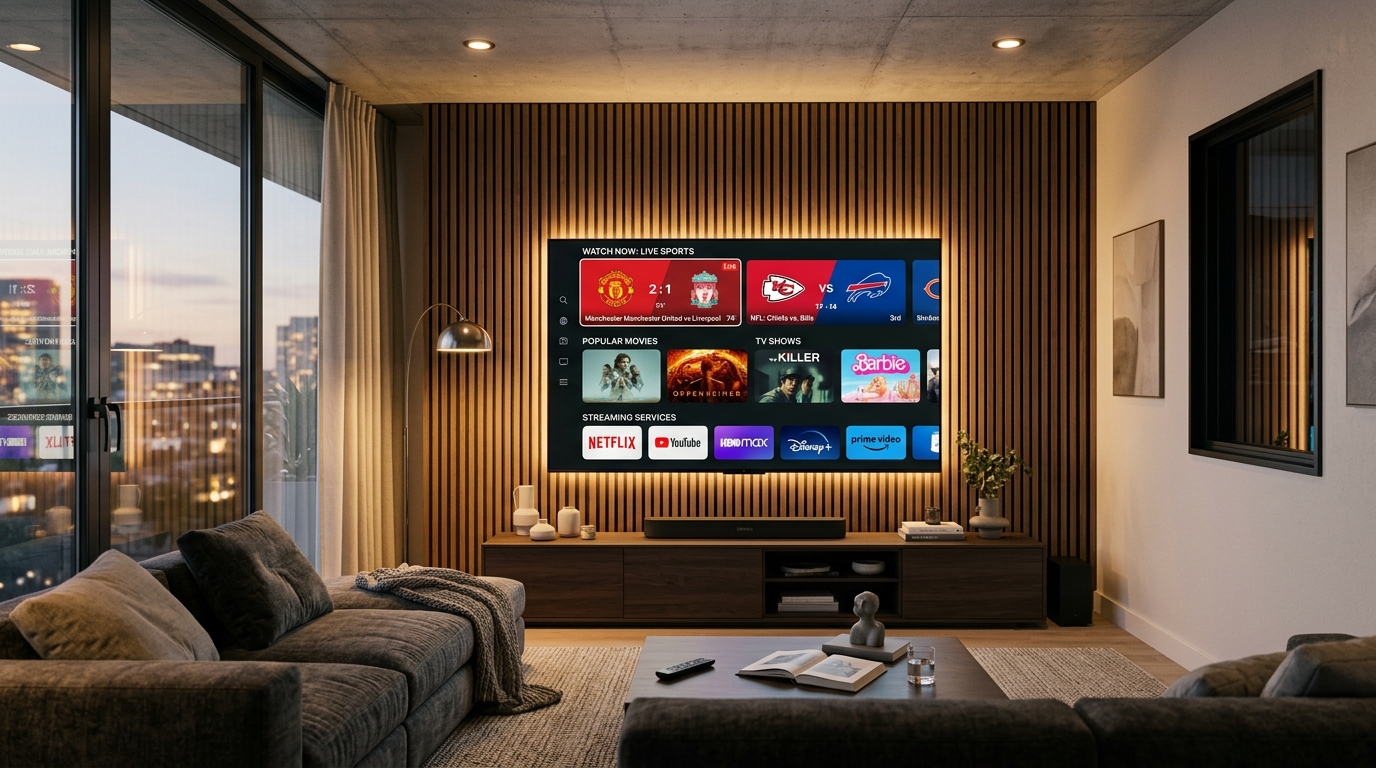
Turn your living room into an organized entertainment hub by improving how you navigate apps. Mastering your connected home setup helps you spend more time watching content rather than endlessly scrolling menus.
Choose Streaming Services for Your Viewing Habits
Select platforms that match your favorite entertainment genres, from premium prestige series to international sporting events:
• Netflix: Primary Strength — Original Content & Global Series | Best For — Binge-watching drama.
• Disney+: Primary Strength — Family & Franchise IP | Best For — Children, Marvel, and Star Wars fans.
• Max: Primary Strength — Premium Cinema & HBO Series | Best For — High-quality cinema dramas.
• Prime Video: Primary Strength — Value & Library Breadth | Best For — Bundled shopping perks & international releases.
• Find Live TV, Sports, News, and Free Ad-Supported Options: Complement paid on-demand subscriptions with live broadcast apps and free ad-supported streaming television (FAST) channels (like Pluto TV and Tubi) to enjoy diverse programming without hefty cable bills.
Organize Apps for Faster Access
• Pin Frequently Used Services to the Home Screen: Treat your home interface as your personal dashboard. Place your top 4-5 go-to streaming apps at the front of the app row to save time each viewing session.
• Remove Unused Apps and Manage Automatic Updates: System clutter consumes storage and background memory. Uninstall unused applications and leave automatic updates active to safeguard your system.
Use Search, Watchlists, and Personalized Recommendations
• Search Across Multiple Services with Voice Controls: Universal voice search remotes index content across all installed apps. Dictate the title or actor once to instantly see where it is streaming without manual search queries.
• Manage Profiles to Improve Recommendations and Privacy: Dedicated profile segregation ensures algorithmic recommendations remain tailored to each user while maintaining private watchlists.
Unlock TV Smart Play Features Across Your Connected Home
Your smart television can serve as the central hub for your entire connected home. Integrating your screens and smart devices turns an ordinary television into an entertainment command center.
Modern smart TV technology bridges mobile devices with your main living room screen. Wirelessly cast family photos, beam lossless music to your soundbar, or mirror your work laptop display with AirPlay or Chromecast.
A strong connected TV ecosystem links your accounts, smart assistants, and hardware into one unified setup. When your network, apps, and hardware work in sync, you gain total control over your digital media library. Audit your setup today to experience the full potential of tv smart play.
Frequently Asked Questions
Should I use built-in smart TV apps or a dedicated streaming device?
Your choice depends on your television's hardware performance. Newer Samsung (Tizen) or LG (webOS) models have snappy, convenient built-in apps. However, dedicated devices like Apple TV 4K, Roku Streaming Stick, or Amazon Fire TV Stick 4K Max feature faster processors, superior app longevity, and smoother TV smart play navigation.
How can I prevent buffering and pixelation during online video streaming?
To ensure stable streaming, connect your TV via a physical Cat6 Ethernet cable whenever possible. If using Wi-Fi, connect to the 5 GHz band and position your router in an open, elevated location. Regularly clear app cache and ensure background device downloads are minimized.
Which streaming services offer the best value for a connected home entertainment setup?
Value depends on household viewing patterns. Netflix and Max lead in prestige cinema and original series; Disney+ is indispensable for families; Prime Video offers extensive libraries alongside shipping benefits; while FAST services like Pluto TV provide free live television without monthly subscription fees.
What are the best smart TV features to improve picture quality?
Select Filmmaker Mode or Cinema Mode to disable artificial processing and display accurate color temperatures. Turn on 4K HDR / Dolby Vision in source settings, and turn off motion smoothing (motion interpolation) to eliminate the synthetic "soap opera effect".
How do I manage multiple profiles and parental controls on my smart television?
Most operating systems and major apps allow you to add unique user profiles with custom avatars. Use settings menus to establish PIN codes on administrative accounts, filter content by age ratings (TV-Y, TV-14, TV-MA), and restrict unauthorized in-app purchases.
Can I use voice search to find content across different smart TV apps?
Yes, universal voice search on Roku, Google TV, Apple Siri Remote, and Alexa-enabled remotes scans across multiple streaming services simultaneously, displaying availability, pricing, and direct deep-links without needing to open each app individually.
How do I optimize my audio for a more immersive multimedia streaming experience?
Connect an external soundbar or AV receiver through the HDMI eARC/ARC port using a high-speed HDMI cable. Enable Dolby Atmos passthrough in TV audio settings, and activate "Dialogue Enhancement" or "Night Mode" to keep speech clear without extreme volume shifts.
Why is it important to keep my smart TV technology updated?
System firmware and app updates provide critical security patches, bug fixes for playback crashes, memory optimizations, and compatibility with new video codecs like AV1 and H.265 (HEVC). Setting your TV to automatic updates ensures peak streaming reliability.
Need Help Configuring Your Setup?
Our team is active on WhatsApp (+44 7934 683184) and email (tvplusone24@gmail.com) to walk you through playlist setup, recommend media players, or activate your subscription instantly.