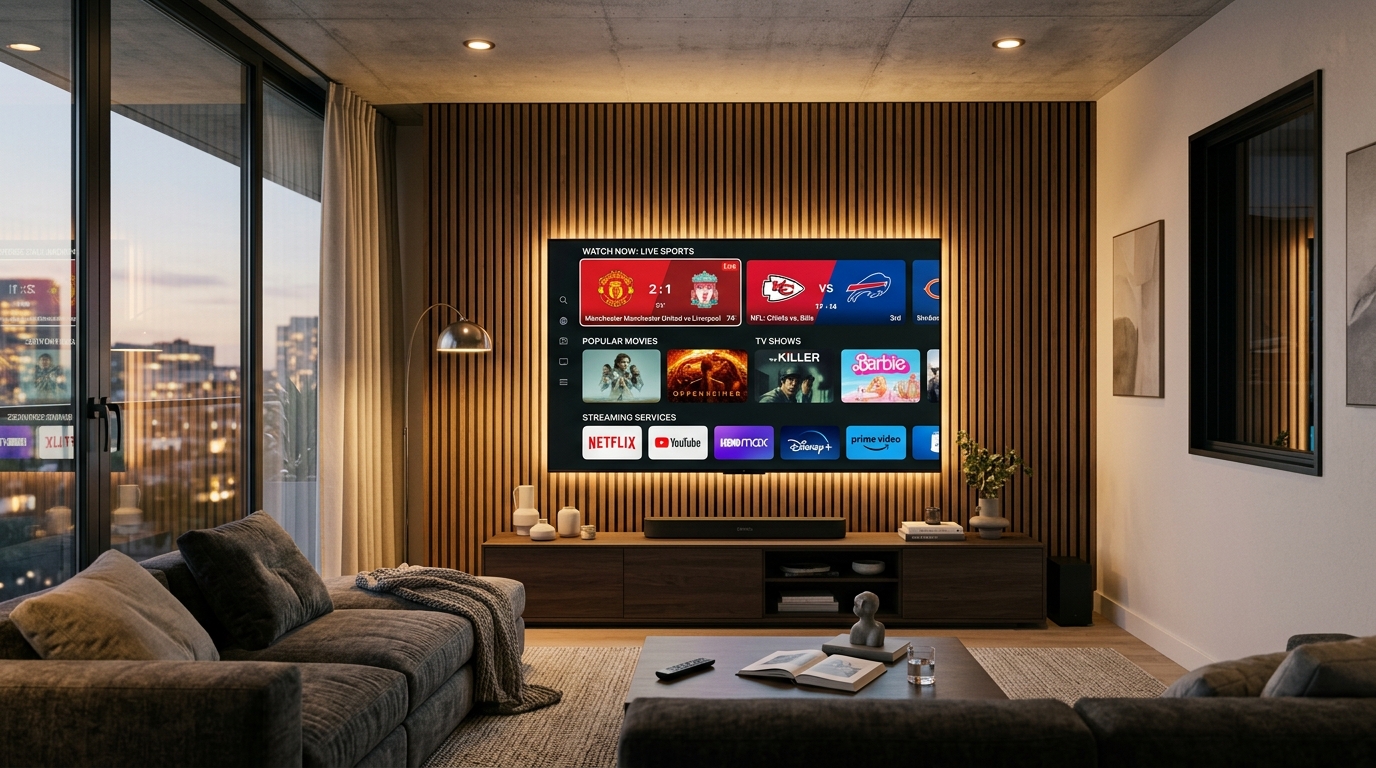
IPTV on Two TVs (2026): How to Stream on Multiple Screens Without Buffering
Discover how to watch IPTV on two TVs simultaneously in 2026. Compare multi-connection plans vs. screen mirroring, calculate bandwidth requirements, and set up multi-room streaming without account lockouts.
Home Media & Network Architect
Verified Technical Guide
Key Takeaways & Quick Summary
- 1Watching IPTV on two TVs simultaneously requires a multi-connection subscription plan; attempting to stream simultaneously on a single-connection plan triggers stream kicking, buffering loops, or temporary account lockouts.
- 2There is a crucial technical difference between installed devices and active concurrent connections: you can install your playlist on 5 or 10 household devices, but only stream on the number of screens permitted by your plan at the exact same moment.
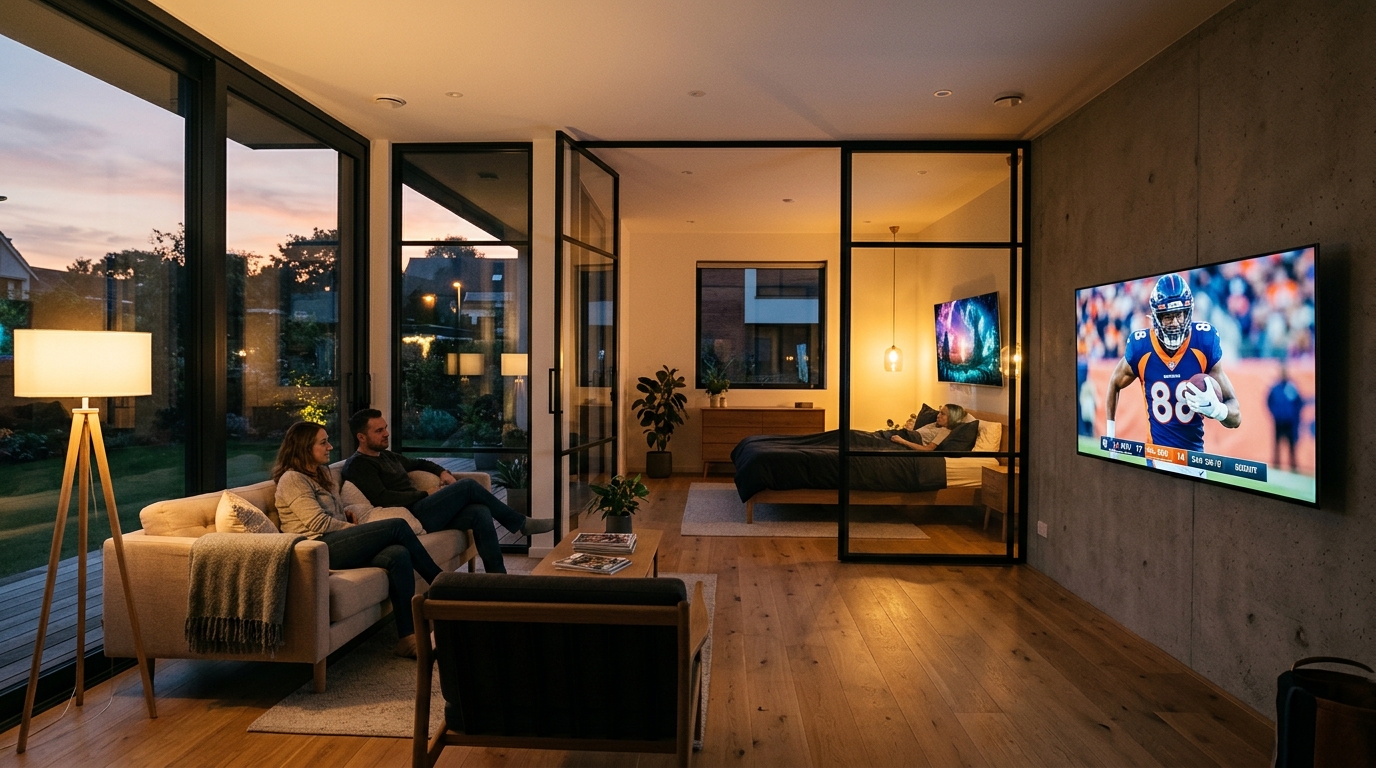
- 3Independent multi-room streaming allows one room to watch live 4K sports while another room watches movies or news, unlike hardware HDMI splitters which only mirror the exact same channel.
- 4Dual 4K streaming requires at least 50 Mbps of stable broadband with packet jitter under 10ms, ideally routed through 5GHz Wi-Fi bands or wired Ethernet connections.
- 5IPTVBoz offers dedicated 2, 3, and 4 simultaneous connection packages on our pricing page, eliminating the $15–$25/mo per-room set-top box rental fees charged by legacy cable companies.
One of the most frequent questions cord-cutters ask when transitioning from cable to digital internet television is simple: can I watch iptv on two tvs at the same time? In a typical household, entertainment needs rarely align. While one family member wants to watch a live Premier League football match or NFL Sunday game in the living room, someone else wants to stream an on-demand movie or evening news in the bedroom.
Under legacy cable and satellite contracts, solving this problem was expensive. Cable operators forced subscribers to lease proprietary converter boxes for every single television in the house, adding $15 to $25 per room every month just in equipment rental fees.
With modern Internet Protocol Television, multi-room viewing is far simpler and vastly more affordable—provided you understand how concurrent connection licensing works. In this comprehensive 2026 guide, you will learn the vital difference between installed devices and simultaneous connections, compare independent streaming against screen mirroring, calculate household bandwidth needs, and follow step-by-step setup instructions for your home.
Installed Devices vs. Simultaneous Connections: The Golden Rule
To understand how IPTV works across multiple screens, you must first understand the fundamental rule of streaming licensing: installed devices do not equal active connections.
When you subscribe to an IPTV service, you receive account credentials (Xtream Codes API or an M3U playlist link). You are completely free to install those credentials on as many devices as you own—your living room Smart TV, bedroom Firestick, office laptop, tablet, and smartphone.
What Is an Active Concurrent Connection?
A "connection" is established the exact second you press play on a live broadcast or video-on-demand title. The media player opens an encrypted data stream with the provider’s server.
• If you have a 1-Connection Plan: Only one device can draw video data at any given moment. You can watch in the living room, shut the TV off, walk into the bedroom, and resume watching there without issue.
• What Happens If You Stream on Two TVs at Once with 1 Connection?: The server detects two concurrent IP requests for the same token. Depending on the server configuration, it will either immediately disconnect the first TV (stream kicking), trap both screens in continuous 10-second buffering loops, or temporarily lock your credentials with an HTTP 401/403 authorization error.
Why You Need a Multi-Connection (Multi-Room) Plan
If you want both televisions streaming different channels independently at the exact same time, you must have a Multi-Connection Subscription (often called a 2-Connection or Multi-Room package).
With a verified 2-connection plan from IPTVBoz, our Content Delivery Network allocates two simultaneous bandwidth tokens to your account, ensuring both screens stream in pristine 4K 60fps with zero friction.
Two Methods to Watch on Two TVs: Independent vs. Mirroring
Depending on your viewing goals and budget, there are two distinct ways to feed IPTV to two television displays:
Method 1: Multi-Connection Independent Streaming (Recommended)
This is the authentic multi-room solution for modern households. Each television has its own streaming device (or built-in smart TV app) and its own remote control.
• How it Works: TV 1 in the living room connects to your IPTVBoz credentials and tunes into live sports. TV 2 in the bedroom connects using the same subscription credentials and streams an HBO movie.
• Advantages: Total freedom. Separate volume, independent channel surfing, separate pause/rewind controls, and no messy cables running between rooms.
Method 2: Hardware Screen Mirroring (Same Channel on Both)
If your goal is simply to have the exact same channel playing in two places—for example, mirroring a sports broadcast from the living room to an outdoor patio or kitchen TV during a party—you can use a single connection with hardware mirroring.
• How it Works: Connect your streaming stick (like a Firestick or Apple TV) to an 1x2 Powered HDMI Splitter. Run HDMI cables (or a wireless HDMI transmitter kit) to both screens.
• Limitations: Both TVs must show the exact same video feed at all times. Changing the channel in the living room changes it on the second screen.
Bandwidth & Network Requirements for Dual 4K Streaming
Running two simultaneous high-definition streams doubles the data throughput demand on your home Wi-Fi network. To prevent buffering when both TVs are active, your home network must meet these technical baselines:
Broadband Speed Benchmarks
• Two 1080p Full HD Streams: Requires a minimum stable download speed of 30 to 40 Mbps.
• Two 4K Ultra HD 60fps Feeds: Requires a minimum stable download speed of 60 to 80 Mbps.
• Bandwidth Overhead: Remember that other household devices (smartphones, work laptops, gaming consoles) share your connection. We recommend an overall home internet plan of at least 100 Mbps to ensure sufficient headroom.
Router & Frequency Optimization
• Avoid the 2.4GHz Wi-Fi Band: Never connect both streaming TVs to 2.4GHz Wi-Fi. The radio frequency is too narrow, leading to packet collisions and stuttering.
• Use 5GHz Wi-Fi or Wired Ethernet: Ensure both streaming devices connect to your router’s 5GHz wireless band. For the main living room screen, a hardwired Cat6 Ethernet cable delivers unbeatable stability with jitter under 5ms. Check our complete guide to fixing IPTV buffering.
Step-by-Step Setup: Configuring IPTV on Two Separate TVs
Setting up dual-screen streaming in your home takes less than five minutes. Here is the recommended configuration workflow:
Step 1: Equip Each Television with a Media Player
Ensure both TVs have compatible streaming hardware or smart operating systems:
• TV 1 (Living Room): Apple TV 4K, Amazon Firestick 4K Max, Nvidia Shield, or Samsung/LG Smart TV.
• TV 2 (Bedroom / Secondary Room): Amazon Firestick, Chromecast with Google TV, or smart TV app.
• Install a premier media player on both devices, such as TiviMate (for Android/Fire TV), IPTVX or Smarters Pro (for Apple TV), or IBO Player (for Samsung/LG Smart TVs).
Step 2: Enter Your Multi-Connection Credentials
Open the media player on TV 1 and select Xtream Codes API Login.
Enter the Server URL, Username, and Password provided in your IPTVBoz multi-connection confirmation message. Click Connect and allow the channel directory to synchronize.
Now walk to TV 2. Open the player and enter the exact same credentials (or your designated Sub-Account login if using sub-device tokens). Click Connect.
Step 3: Conduct a Dual-Screen Stress Test
Turn on a live sports channel on TV 1. Walk to TV 2 and tune into a completely different channel (such as a 24/7 movie feed or news network).
Verify that both streams play simultaneously in fluid high definition with zero frame drops or buffering pauses.
Cost Comparison: Cable Multi-Room vs. IPTVBoz Multi-Connection
Comparing the real-world cost of multi-room television illustrates why internet television represents massive savings for families:
The True Cost of Multi-Room TV
• Traditional Cable / Satellite (2 Rooms): Base package ($120/mo) + Primary box lease ($15/mo) + Secondary box lease ($15/mo) + Regional sports and broadcast fees ($35/mo) = $185.00 / month ($2,220 annually).
• IPTVBoz IPTV 2-Connection Plan: Full 50,000+ live channels, sports, PPVs, and VOD on two screens simultaneously with zero hardware lease charges. Plans on our pricing comparison page start at just $24.99/mo or $99.99 for an entire year—delivering over $1,900 in direct annual savings.
How to Get Your IPTVBoz Multi-Room Subscription
Getting your household set up for dual-screen streaming is fast and straightforward:
1. Visit our subscription pricing directory and select the 2 Connections plan (or 3 to 4 connections for larger households).
2. Reach out directly to our live support desk on WhatsApp at +44 7934 683184 or message us via our contact page for instant activation.
3. Want to test performance first? Request a multi-room test stream by following our IPTV free trial guide.
4. Enjoy independent, buffer-free 4K sports and entertainment across your entire home with zero contracts and zero hardware fees.
Frequently Asked Questions
Can I use one IPTV subscription on two TVs at the same time?
Yes, provided your subscription plan includes multiple simultaneous connections. IPTVBoz offers 2, 3, and 4 connection packages designed specifically for multi-room households. If you attempt to stream on two TVs simultaneously with a single-connection plan, the server will disconnect one of the devices.
Can both TVs watch different channels at the same time?
Yes! With a multi-connection subscription, each television operates completely independently. One screen can watch live 4K football while the other watches news, documentaries, or movies on demand.
Do both TVs have to be the same brand or model?
No. You can mix and match any hardware you own. For example, your living room can run on an Apple TV 4K or Samsung Smart TV, while your bedroom runs on an Amazon Firestick, Google TV, or mobile tablet.
How much internet speed is needed to stream IPTV on two TVs?
For two simultaneous 1080p HD streams, we recommend at least 30 to 40 Mbps. For dual 4K Ultra HD streams, a steady broadband connection of 60 to 80 Mbps or higher on a 5GHz Wi-Fi band or wired Ethernet is recommended.
Can I add a second connection to my existing IPTVBoz plan?
Yes! If you already have a 1-connection subscription and wish to upgrade to 2, 3, or 4 screens, simply message our customer support team on WhatsApp at +44 7934 683184 for a seamless prorated upgrade.
Need Help Configuring Your Setup?
Our team is active on WhatsApp (+44 7934 683184) and email (tvplusone24@gmail.com) to walk you through playlist setup, recommend media players, or activate your subscription instantly.
Keep Reading
Recommended Streaming Guides

IPTV for Sports (2026): Best 4K Channels, 60fps Feeds & Zero Lag Setup
How to Stop IPTV Buffering: 8 Proven Fixes for Smooth 4K Streaming (2026)